One of the reasons for the recent lack of posts is the tragic hospitalization of our beloved iMac computer. We’ve had the iMac for a couple years, and it just so happened that when I was setting it up in our new home, I started noticing problems. I rebooted, and got nothing. It wouldn’t boot up. I feared a total loss, but at the very least I knew that the computer’s hard drive had serious problems.
My brother, Matt, has a buddy who works as a “genius” up at the Apple store. So, I went with Matt to have the genius confirm my diagnosis and hopefully to replace the drive. Well, it didn’t work out so well. First, Matt’s genius was not very helpful (not entirely his fault — it was a busy day at the Apple store). Second, I found out that the iMac’s AppleCare warranty had just expired, so I would have to foot the bill on my own. And third, I was told that because it was so busy, they would have to keep it overnight and have a tech diagnosis the problem and call me the next day.
The Apple tech did call me the next day and confirm that I had a “bad” drive and that it would cost me about $350 to replace, but all of my data was gone. I told him not to work on it, and that I would do it myself. Once I got the iMac back, I started prepping for surgery.
First, I shopped for a new hard drive. After some back-and-forth, I decided to purchase a Western Digital Caviar Black 500GB drive. It’s a 7200 RPM drive with 32MB cache, so it is fairly fast. Also, it was double the size of the original drive, and it was priced right — about $70 from Newegg.com.
Since I was going to be opening up the iMac, I thought it would be a good idea to also upgrade the memory while I was already in there. So, I added a 2GB stick of memory to replace a 1 GB stick, thereby maxing out the memory for my machine.
While I waited the couple days for the new equipment to arrive, I thought I would do some CPR on the old drive to see if I could rescue any of the data. I was really nervous that we weren’t going to be able to recover anything, which would mean losing months of photos and documents — not good.
I started to take apart the iMac, not an easy chore. It was pretty nerve-racking because of the many parts all jammed together into the monitor. I tried to keep track of all the screws and cables so I could put it back together again, but I eventually got to the faulty hard drive.
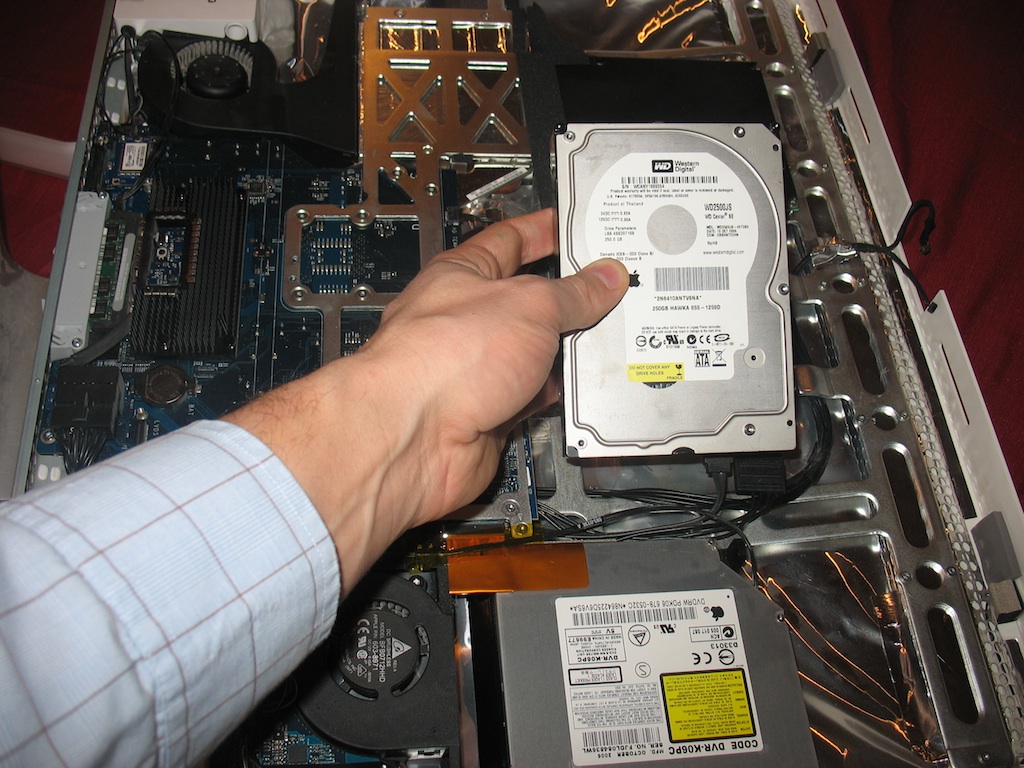
I borrowed a USB drive enclosure from work (thanks help desk guys!), and took the removed faulty drive and plugged it into another computer and see what data could be recovered. When I plugged in the drive, I got a warning message that basically said, “This drive is having problems, back it up as soon as possible.”
So that’s just what I did. I immediately copied all of our digital photos, since that is easily the most valuable data of all the bits and bytes. When that was done, I felt much better. The important stuff was safe, and everything else I could recover was gravy.
With the crucial data safe, I started exploring several other parts of the drive, trying to copy what was important. There were some areas that I couldn’t get to, but with the crucial data (photos) safely backed up I felt like I could start experimenting with the drive.
My first experiment was to to freeze it. That’s right, I put the bad drive in a zip-lock baggie and stuck it in the freezer overnight. Freezing a drive can help in certain problems where the generated heat from the drive causes parts to expand and start bumping into each other, or totally seizing.
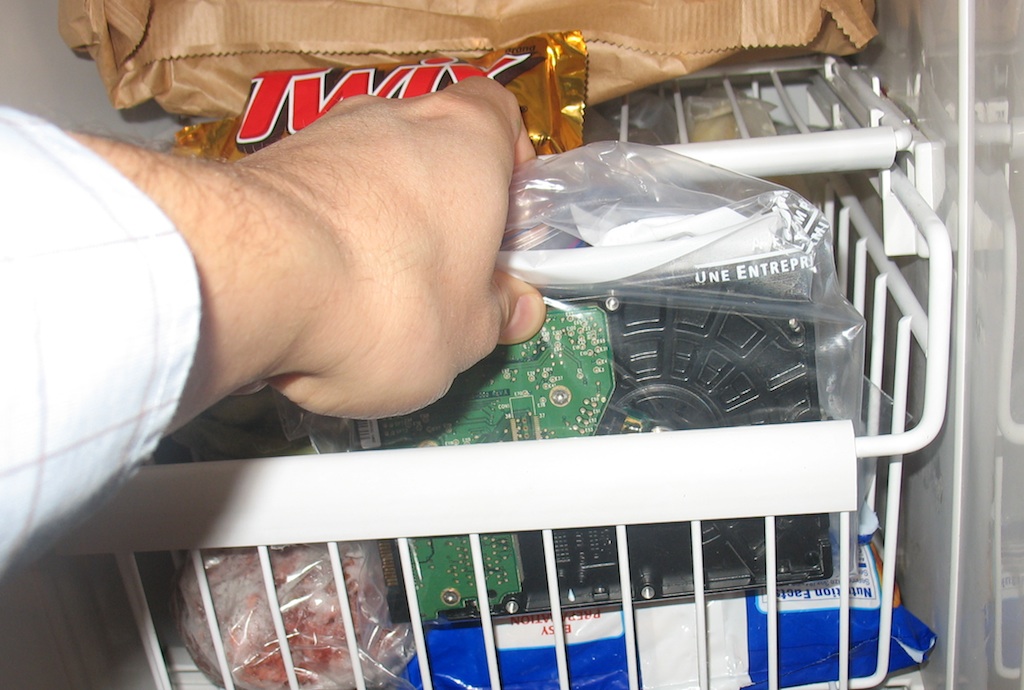
Unfortunately, the freezing didn’t work. I still couldn’t access all the data on the drive.
Next was to try to use some hard-drive recovery software. I purchased SpinRite and put it to work on the drive. It ran for nearly three days go though the drive sector by sector. While SpinRite was working away, my new hard drive and memory I purchased from Newegg arrived.
Installing the new hard drive and putting the iMac back together wasn’t as big a deal as I originally feared. I installed Snow Leopard (the iMac operating system) on the new drive with very little trouble, and I noticed just how peppy my “new” machine was. A little RAM and a fresh OS can go a long way in making your computer feel brand new again.
Once the machine was put back together, I attached the old drive (using a USB drive enclosure I borrowed from work) and restored all of the files I could get to. Unfortunately the freezing and SpinRite-ing didn’t manage to recover any additional data, but it was still a fun project. It’s nice to have our computer back up and running.


 MightyJohnsons
Nice work, Seth!
… Can I have that Twix?
LikeLike
Yeah, nice try Abby. Guess how long a Twix lasts in our house. That thing was gone before it got frozen.
LikeLike
i…….have……this…….really……..slow……..com……pu..
Can you help?
LikeLike
I was gonna mention the Twix too…guess I’ll just laud your bravery for tearing apart a very expensive machine. More guts than me.
LikeLike